Snapchat made short form sharing feel personal, fast, and fun. Its temporary posts, filters, stickers, and text overlays helped shape the visual language of social media. Today, users can choose from several text styles to match a joke, announcement, or brand message. Whether you are sharing a selfie or a detailed story, the right text style helps express your mood. While the app offers built-in options, many users want more creative control. This guide explores the Snapchat text fonts and shows you how to customize your text and create polished styles with external editing tools.
What Font Does Snapchat Use?
What is the Snapchat font? The Snapchat font generally refers to the default typeface used for Snapchat captions and text overlays. Snapchat has also offered multiple text styles, including bold, cursive, glow, and comic like options.
If you’ve ever wondered, “What font does Snapchat use?” The answer lies in this clean, modern geometric sans serif typeface. It is designed for maximum legibility on mobile screens, even when placed over busy backgrounds. The font reflects the app’s brand: playful, modern, and accessible.
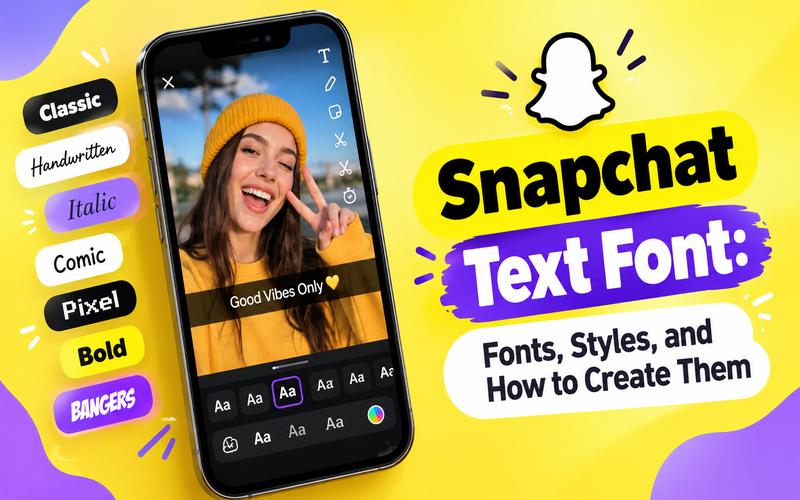
When you first tap to add text, you often see the default Snapchat text box font overlaid on a semi transparent gray caption bar. This classic look is iconic to the platform and forms the foundation of the app’s visual communication. The gray bar ensures your white text stays readable, even in bright environments.
However, users should note that Snapchat font names and ordering can vary between different device models, operating systems, and app updates. While many designers look for digital counterparts for their own projects, external font matches are approximations, not official identifications. Designers often suggest “Public Sans” or “Arimo” as close free alternatives for those trying to replicate the look in other software.
Popular Snapchat Text Font Styles
The app offers 11 distinct fonts, each designed for a specific mood. While the app doesn’t list their names, identifying them helps you find similar styles for external use.
1. The Classic (Public Sans)
This standard Snapchat caption font features the iconic gray background bar. It is perfect for clear, concise messaging that doesn’t distract from the visual content.

2. Handwritten Script (Bad Script)
For a personal touch, this cursive style works well as a Snapchat story font. It mimics natural handwriting, making it ideal for sharing heartfelt messages or artistic updates with friends.
3. Elegant Italic (Cormorant Upright)
This font offers a refined, italicized look with high contrast. It suits travel photography or fashion related Snaps where you want a touch of sophistication.
4. Casual Comic (Comic Neue)
Add a lighthearted vibe to your post with this font. It resembles the playful nature of Comic Sans but with a cleaner, more modern execution for humor.
5. Professional Serif (Noto Serif Georgian)
This structured serif font provides a formal appearance. With sharp edges, it is perfect for announcements or content requiring authority and a traditional feel.
6. Playful Cursive (Ms Madi)
Similar to the script option but with more flourishes, this style is highly expressive. Use it to highlight specific words or add whimsical flair to celebration posts.
7. Modern Geometric (Arimo)
Arimo is a modern sans-serif focusing on maximum legibility. It is an excellent choice for longer captions where you want text to look sharp on high-resolution screens.
8. Retro Pixel (Pixelify Sans)
For a nostalgic aesthetic, the pixelated font brings an 8-bit feel to your Snaps. It is perfect for projects celebrating retro technology or digital gaming culture.
9. Bold Rounded (Fredoka)
This font is thick, rounded, and very friendly. Its high visibility makes it a top choice for headlines, standing out effortlessly against any video background.
10. Heavy Slab (Alfa Slab One)
For maximum impact, use this slab serif font. Thick lines and heavy serifs ensure your titles grab the viewer’s attention immediately for dramatic effect.
11. Dynamic Comic (Bangers)
This high energy style often includes an automatic outline. It works best for action packed videos, making your text jump off the screen with a comic book feel.
Availability and the order of these fonts can vary depending on your app version and your recent usage. Snapchat often prioritizes the fonts you use most frequently, making it easier to maintain a consistent style for your personal brand.
How to Change the Text Font on Snapchat
Customizing your snaps is easy once you know where the tools are. To add Snap text to photo or video content, follow these simple steps:
- Capture your Snap: Take a photo or video using the Snapchat camera.
- Open the Text Tool: Tap the “T” icon in the top right corner of the preview screen.
- Type Your Message: Enter your text. By default, it will use the classic Snapchat caption font.
- Select a Style: A menu of font names will appear above the keyboard. Swipe through them to see how your text changes. You can choose from options like Big Text, Glow, or Rainbow.
- Adjust Appearance: You can tap the color picker to change the text color. Many styles also allow you to toggle alignment (left, center, right) or add an outline.
-
Resize and Reposition:
Use two fingers to pinch and zoom to resize the text. You can also drag it anywhere on the screen or rotate it to a creative angle.
Remember that if you want a transparent Snapchat text look, you might need to select specific styles that don’t have a solid background bar, or use external tools to create a custom Snapchat caption PNG.
Want More Snapchat Text Font Options?
Snapchat’s native tools are great for quick edits, but they can feel limiting for creators who want professional grade animations and a wider selection of typefaces. That is where HitPaw Edimakor can help.
HitPaw Edimakor is an all-in-one video editor designed to make creative storytelling easier for everyone. Whether you are working on a Windows PC, a Mac, or using the online version, Edimakor provides a suite of tools that far exceed the capabilities of mobile social apps. It’s perfect for creators who want to export their Snaps to other platforms or create high-quality social media content with advanced typography.
Key Features of Edimakor
Edimakor stands out for its massive asset library and advanced AI capabilities. Here is why it is the perfect companion for creating Snapchat content:
Key Features
- AI Video Editor: Use AI to generate scripts, translate videos with 400+ voices, and create AI avatars that lip sync to your audio.
- AI Powered Tools: Features like Auto Subtitle, Text to Video, and AI Video Generator help you create content faster than ever.
- Massive Media Library: Explore 50,000+ stock photos and videos, plus 1,000+ cinematic effects and filters 1000 stylish animations and fonts, and 500+ playful stickers and GIFs to elevate your visual storytelling.
- Background and Watermark Remover: Easily clean up your visuals with one click tools.
- Platform Availability: Work seamlessly on desktop or use Edimakor online for quick edits.


How to Use Text Font in Edimakor
Adding stylish text overlays in Edimakor is quick and easy. Follow these steps to get started:
Step 1: Upload Your Photo or Video
Launch Edimakor and click the “Import” button to upload your media. You can also import or drag & drop your files directly onto the timeline.
Step 2: Add and Customize Your Text
Click on the “Text” tab in the assets panel. Choose from more than 1,000 fonts and animations, then drag your preferred style onto the timeline above your video. Use the properties panel to adjust color, size, spacing, and add effects like drop shadows or custom outlines
Step 3: Preview and Export
Once you are happy with your design, use the preview window to see how the text looks in motion. Click “Export” to save your video in high resolution, ready to be shared on Snapchat or any other platform.
FAQs About Fonts on Snapchat
A1: No, you cannot import custom font files (like .ttf or .otf) directly into the Snapchat app. You are limited to the selection Snapchat provides. To use custom fonts, you must edit your photo or video in a third party app like Edimakor before uploading.
A2: When you tap the text tool in Snapchat, the first default style usually includes the semi-transparent gray bar. If you have changed styles, cycle back to the “classic” or “caption” option to restore this look.
A3: Snapchat often rolls out updates in phases. Your font selection may depend on your device (iOS vs. Android), your app version, and even your geographic location. Keeping your app updated ensures you have access to the latest styles.
Conclusion
The Snapchat text fonts are more than just a way to add words. They are a vital tool for storytelling and branding. You can ensure your content always hits the right note by mastering the default Snapchat Sans and exploring the eleven alternative styles. However, for those who need more flexibility, custom fonts, and professional animations, HitPaw Edimakor is the ultimate companion. It empowers creators to move beyond mobile limitations and produce viral ready content with ease.
Try HitPaw Edimakor today and see how advanced typography can transform your social media presence!
Leave a Comment
Create your review for HitPaw articles