Snapchat has become one of the go-to platforms for sharing short, fun, and creative videos with friends and followers. Whether you’re posting a Story, sending a Snap, or creating Spotlight content, editing your videos can make them more engaging and appealing. From trimming unwanted clips to adding filters, text, music, stickers, and effects, Snapchat offers a wide range of built-in editing tools. In this guide, you’ll learn how to edit a video in Snapchat step by step, and also find out the best alternative to edit videos in 2026. Ensure to read this guide till the end.
Part: What is Snapchat?

Snapchat is a social media platform and multimedia messaging application that can be accessed via Android and iOS mobile devices. It allows users to take photos, record videos, add drawings, and send them to their friends. The app has several different features, such as Stories, which disappear after 24 hours; Memories, which act as a kind of personal archive; Snap Map, which lets users share their live location and explore Snaps from around the world; and Spotlight, a dedicated feed for discovering short-form viral videos created by the Snapchat community. In addition to messaging, Snapchat offers a wide range of editing tools, including trimmer, AR lenses, stickers, GIFs, music integration, voice effects, and more.
Part 2: Why Edit Videos in Snapchat?
Snapchat offers an amazing video editor that enables users to perform tasks like trimming, cropping, adding filters, effects, text, stickers, music, GIFs, and AR lenses without relying on third-party software. Here are some key benefits of editing videos in Snapchat:
- Easy-to-Use: One of the best parts of trimming or editing videos on Snapchat is its beginner-friendly interface. Users can easily shorten videos without editing experience or professional help.
- Save Time: Users can perform edits quickly, saving both time and effort. Snapchat’s built-in video editor eliminates the need to switch between multiple apps, allowing you to trim videos, apply filters, add text, and effects from a single interface.
- Share Options: Once the video is edited, you can directly share it with your friends and family, post it on your Story, or upload on the Spotlight. Plus, you can download the edited video with a single tap.
Part 3: How to Trim Videos in Snapchat Without Losing Quality
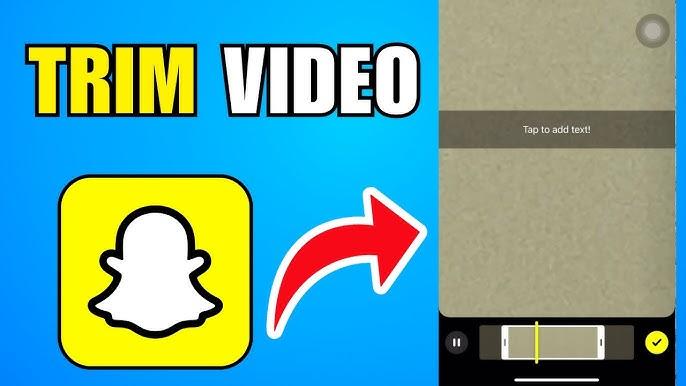
With Snapchat, you can record up to 2 minutes in one Snap, making it easy to capture longer moments without switching between multiple recordings. However, if your video contains unwanted moments, then you can use the built-in trimmer to remove the unnecessary parts while maintaining the original video quality. Here is how to trim a Snapchat video:
-
Launch Snapchat on your Android and iOS device. Press and hold the “Record” button to capture a video. You can record up to 2 minutes in a single Snap.
-
After finishing recording, look for a mini video preview at the bottom left. Tap on it to open the video timeline.
-
Now, drag the Start and End handles to remove unwanted portions. Once satisfied, tap the “Checkmark” button to apply the changes. Then, tap the “Send To” button to share it with your friends or post it as a “Story.”
Part 4: How to Shorten Videos from Camera Roll on Snapchat
Snapchat not only enables users to trim videos recorded within the app, but it also allows users to shorten videos stored in their device’s Camera Roll. This feature is useful when you want to remove unnecessary parts of an existing video before sharing it as a Snap, Story, or Spotlight post. Follow the instructions below to learn how to shorten a Snapchat video from Camera Roll:
- Open Snapchat on your device and tap on the “Memories” icon available at the bottom of the screen.
- Choose “Camera Roll” from the above and select the video you want to trim. Your device video will now open on Snapchat.
-
Next, use the trim handles on the timeline to adjust the video and remove unwanted sections.
- Once satisfied, tap the “Checkmark” button to save the changes. Now, you can share the edited video with your friends or post it to your Story.
Bonus Tip: How to Trim Videos Without Snapchat in 2026
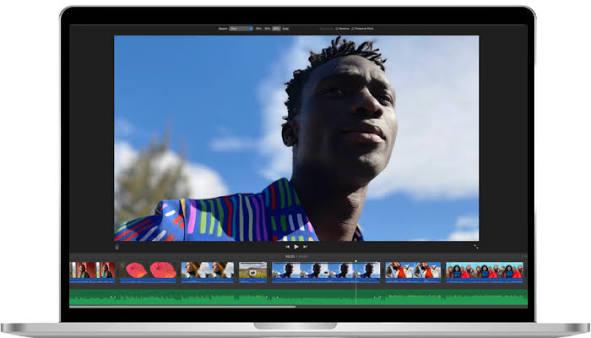
Snapchat is an amazing tool for trimming short videos and Snaps, but its editing capabilities are primarily designed for quick social media content. If you want professional results, Snapchat may not be enough. That’s where HitPaw Edimakor comes in. It is an all-in-one AI video editor that enables users to trim, cut, split, merge, crop, rotate, and enhance videos with just a few clicks. The best part of this tool is that it offers an easy-to-use interface, allowing newbies to use this program's features without professional help. In addition, HitPaw Edimakor also includes Text-to-Video capabilities, allowing users to create high-quality Snaps for Snapchat with a simple text prompt.
Key Features of HitPaw Edimakor
- Professional Video Trimming: HitPaw Edimakor AI offers timeline-based video trimming that gives you complete control over your edits. You can easily cut unwanted sections from the beginning, middle, or end of a clip.
- Multiple Editing Features: The program isn’t limited to simple video trimming. It offers a wide range of AI video editing features, such as speed adjustment, filters, effects, rotation, merging, cutting, cropping, enhancing video, and more.
- Text-to-Video: HitPaw Edimakor enables users to create high-quality and engaging Snap with a simple text prompt. Simply, enter the text prompt, choose the AI model, adjust the video settings, and click on the “Generate” button.
- Compatibility: It works perfectly with multiple devices, such as Windows and macOS. Plus, users can download videos in various formats, such as MP4, AVI, MOV, and MKV, making it ideal for Snapchat, Instagram, and YouTube.
- Intuitive Interface: The program offers an easy-to-use and simple interface, allowing users to trim videos without editing experience or professional help. Its drag-and-drop workflow makes it easy to trim, cut, split, and arrange video clips.


Step-by-Step Guide:
HitPaw Edimakor enables users to trim videos without professional help. Here is how to do it:
Step 1: Import The Video
Go to HitPaw Edimakor's official site and download the latest version of the program on your PC. Launch it and click on the “New Project” option. Upload the video you want to trim.
Step 2: Trim The Video
Once the video is uploaded, drag and drop it onto the timeline at the bottom of the screen. Now, drag the start and end edges of the clip to remove unwanted footage.
Step 3: Export The Video
After the video editing is complete, click on the “Export” button available at the top. Choose your preferred video format, resolution, and frame rate. Hit the “Export” button again to download the video.
Final Thoughts
How to edit a video in Snapchat? Snapchat is an amazing social media app, allowing users to share Snaps and Stories with friends and family. However, its amazing video editing features make it an ideal option for tasks like trimming, cropping, and more. To achieve professional results, we recommend using HitPaw Edimakor. It is an all-in-one video editor that enables users to edit videos without sacrificing the original quality.
Leave a Comment
Create your review for HitPaw articles