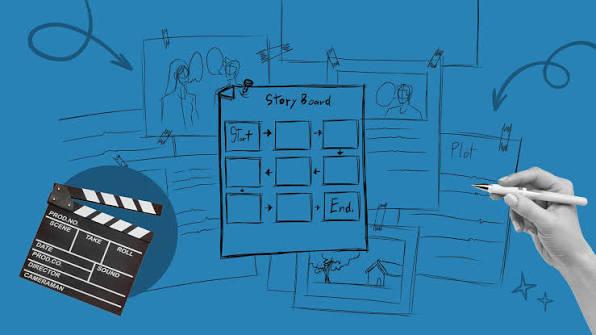
A storyboard is the bridge between your script and your finished video. It helps visualize each scene, organize shots, and plan how the story will flow before production begins. Turning a storyboard into a video can make the editing and production process more organized, especially for beginners who may not have professional video-making experience. With the help of AI video tools, users can now transform storyboard ideas into engaging videos more easily. In this guide, we’ll explain how to turn storyboard into video, from preparing scenes to adding voiceovers, music, and transitions. Be sure to read this guide till the end.
Part 1: What is an AI Storyboard?

AI storyboard is a visual plan of a video created or enhanced with the help of artificial intelligence. Instead of manually designing every scene, users can provide a script, story idea, or text prompt, and AI tools can generate scene descriptions, visuals, characters, camera angles, and shot sequences. This enables creators to visualize their ideas before moving into the actual video production process. AI storyboard can also help organize scenes and identify missing details before editing begins. They are useful for creating social media videos, advertisements, short films, presentations, tutorials, and more.
Part 2: How to Turn a Storyboard into an AI Video in 2026
How to turn storyboard into video? The key to creating an AI video isn’t necessarily writing a more detailed video prompt. The workflow comes down to three assets: a character sheet to keep your character consistent, a storyboard to map out the full sequence, and a video prompt. Follow the step-by-step instructions below:
Step 1: Create a Character Sheet
One of the most essential parts of creating a high-quality and engaging storyboard is the character. Before creating individual scenes, it is important to define how each character should look and behave throughout the video. A character sheet includes details such as appearance, clothing, hairstyle, facial features, age, body type, and expressions. Next, head to a character generator and upload your reference image. Then paste the character sheet below and generate an engaging character.
Step 2: Build a Storyboard Sheet
Once you’ve created characters for your storyboard, the next step is to turn the video idea into a storyboard. First, create the title of your video and then begin the storyboard process. For a 30-second video, I used a 15-panel storyboard with roughly two seconds per panel. Each panel should represent a specific moment or shot and include important details such as scene description, character actions, dialogue, camera angle, movement, background, and visual elements. You can also mention transitions, sound effects, background music, and voiceover instructions where necessary.
Step 3: Turn the Storyboard into Video
Now comes the final step: turning the storyboard into video. Choose a professional AI storyboard generator for this process. Launch the tool and upload your storyboard panels, character references, or other visuals. If the tool supports text prompts, describe each scene clearly and include details such as character actions, camera movements, backgrounds, and transitions.
Next, arrange the storyboard panels in the correct order and adjust the duration of each scene according to your storyboard. Also, add voiceovers, background music, sound effects, captions, and transitions to make the video more engaging. Finally, review the complete video, make any adjustments, and export it in your preferred resolution and format.
Part 3: Best AI Tool to Turn a Storyboard into a Video
In 2026, there are several storyboard generators available that can turn a storyboard into engaging videos. But the best among them is HitPaw Edimakor. It is one of the best AI video editors that also offers an AI story-to-video feature. With the help of this tool, users can easily transform their story ideas and storyboard concepts into complete videos. It can help generate scenes, organize shots, and bring different parts of a story together in a more structured workflow. The tool is also suitable for beginners because it provides an intuitive interface and AI-powered features that reduce the need for complex manual editing. Apart from the AI story-to-video feature, HitPaw Edimakor also offers advanced editing capabilities, allowing users to customize videos according to their requirements.
Key Features of HitPaw Edimakor
- AI Story-to-Video: HitPaw Edimakor uses AI technology to help users transform story ideas and script into engaging videos. Users can provide their story concept, and the tool can help generate engaging visuals.
- Multiple Story Styles: The program supports a wide range of story styles, such as Japanese Anime, Micro-drama, Christian Faith, Islamic Faith, Story Creation, Neon Story, Custom Input, and more.
- AI Video Editing: Once the video is complete, users can use the AI Video Editor to customize the video. Users can change the background, add music, effects, filters, and transitions.
- Multiple AI Tools: The program offers a wide range of AI tools, each with unique features, such as text-to-video, image-to-video, AI video enhancer, AI image generator, and more.
- Easy-to-Use: One of the best parts of this tool is that it offers a simple interface, which makes it the best option for non-tech and beginner users. It enables users to create engaging stories without editing experience.


Step-by-Step Guide:
Learn how to create engaging stories in different styles with HitPaw Edimakor. Here is how to do it:
Step 1: Choose AI Video Generator
Launch HitPaw Edimakor on your PC and select the “AI Video Generator” feature from the main interface. Next, choose the “Story to Video” option from the left panel.
Step 2: Enter The Video Script
If you already have the script, click on the “Start with Script” option. Enter or upload the script into the prompt box.
Step 3: Generate and Download
Click on the “Next” button to begin the creation process. Within seconds, your complete story will be ready. Preview and download it in multiple formats.
Part 4: FAQs Related to AI Storyboard Generator
A1: HitPaw Edimakor is no doubt the best AI storyboard generator available in 2026. It provides a simple way to turn creative ideas, scripts, and story concepts into organized visual scenes. The program also offers advanced video editing tools, allowing users to customize videos according to their requirements.
A2: Yes, tools like HitPaw Edimakor can easily turn a storyboard into high-quality videos, which are ideal for platforms like Instagram, TikTok, Facebook, YouTube, and more. One of the best parts of this tool is that it is ideal for non-tech and beginner users. No professional help or editing experience is required.
Final Thoughts
In this guide, we have provided step-by-step instructions on how to turn storyboard into video. From creating a character sheet and organizing the story into storyboard panels to generating the final video, each step helps make the video creation process more organized and efficient. If you are looking for a beginner-friendly option, HitPaw Edimakor is a useful choice for creating and editing videos. With its Story to Video feature, users can easily turn a storyboard into engaging and high-quality visuals with a single click.
Leave a Comment
Create your review for HitPaw articles