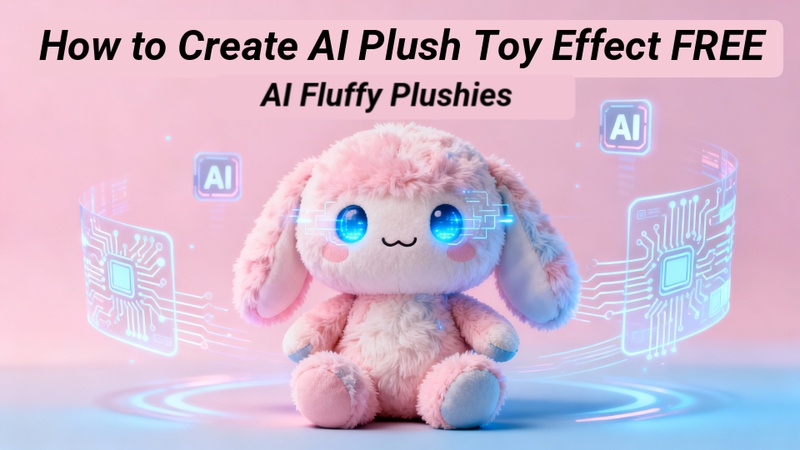
One of the cutest and most popular AI fads at the moment is the AI plush toy effect. This effect turns regular images into cute stuffed animals, from soft yarn plushies to fluffy Jellycat-style dolls. Anyone can now produce plush-style photos and films in a matter of minutes using free AI tools and clever instructions.
Part 1: What Is the AI Plush Toy Effect or the Jellycat AI Filter
Before learning about the best AI for plush toy effect, let us see what an AI plush toy filter is.
1 What Is the AI Plush Toy Effect and the Jellycat AI Filter
The AI plush toy effect free uses artificial intelligence to restyle a real photo into a soft, fluffy, stuffed-toy look. The AI recreates facial features, textures, and lighting to resemble plush dolls, teddy bears, or Jellycat-style characters.
Jellycat AI Filter is a fun photo effect that turns people or objects into soft, plush toy-like versions. A jellycat AI generator can create cute, realistic stuffed-animal textures for images.
2 Why the Plush Toy Filter Is So Popular
- Viral growth on TikTok and Instagram
- Emotional appeal of soft toys
- Safe, family-friendly visuals
- Easy sharing as profile pictures or reels
Part 2: How to Turn Yourself into a Plush Toy
Now that you understand the concept, next comes the fun part. Step by step, with simple tools, you can easily learn how to use AI plush toy effect:
Turn Yourself into a Plush Toy in a Photo
Here are the steps to turn photo into plush toy AI using Edimakor Image Effects:
Step 1: Open Edimakor
First, open HitPaw Edimakor on your device. Once the software launches, scroll down and tap on AI Image Effects and Nano Banana section to pick a plush toy filter and hover on it to get started.



Step 2: Upload a Photo for the AI Plush / Yarn Doll Effect
Next, hit the box in the middle and upload the photo you want to turn into a plush toy.
Step 3: Customize with AI Prompts for Texture
After uploading the image, scroll down to find the prompt box. Here, you can customize the prompt to add extra enhancements such as soft fabric texture, fluffy details, or Jellycat-style looks. You can also adjust the image resolution and aspect ratio according to your needs.
Step 4: Generate and Export Your Plushie
Now, click the Generate button and wait for the AI to process your image. Once completed, the result will appear in the My Creations section. Add it to the timeline, preview the output, and when satisfied, hit the Export button to save your plush toy image.
Turn Your Pet into an Adorable Plush Toy in a Video
Now, let us see how you can use Edimakor, a perfect AI plush toy maker to turn your pet into a plush toy:
Step 1: Open a New Project in Edimakor
Start by opening Edimakor and selecting New Project from the home screen to begin creating your plush-style pet video.
Step 2: Choose the Doll Effect from AI Video Effects
Go to the AI Video Effects section and open the Stylization category. From there, select the Doll Effect, which is designed to give pets a soft, plush-like appearance.
Step 3: Upload Your Pet Image and Adjust Settings
Upload your pet’s photo and then adjust the video resolution and duration to match your project requirements. This ensures smooth motion and high-quality output.
Step 4: Generate and Export the Plush Pet Video
Finally, click Generate and allow the AI to process the video. Once the plush animation is ready, preview it in the timeline and export the final video using the Export button.
Part 3: How to Write the Best AI Plush Toy Prompts
At this stage, prompt quality becomes crucial. The better your wording, the more realistic and adorable your AI fuzzy toy effect result will appear.
Example Prompts for Different Styles
Knitted Plush Style Prompt
Cute knitted plush toy, soft yarn texture, visible stitches, rounded body, pastel colors, studio lighting, great detail, kawaii plush style.
Velvet Plush Style Prompt
Ultra-soft velvet plush toy, smooth fabric surface, Jellycat-inspired design, fluffy edges, gentle shadows, cozy aesthetic.
Chibi Plush Style Prompt
Chibi plush doll with oversized head, tiny limbs, fluffy cotton texture, soft lighting, and adorable facial expression.
Create a Prompt with AI Prompt Generator (Using Edimakor)
Let us explore the steps to use Edimakor for creating a perfect AI plush toy prompt:
Step 1: Open Edimakor and move to the toolbox. Choose any of the AI tools to access the prompt generator.
Step 2: After opening the tool, you will see a prompt box where you can type the prompt. Look for the small Prompt Generator button just below the prompt box. Tap on it. You can choose either text or an image.
Step 3: If you choose an image, then you have to upload the image; Edimakor will automatically create a prompt defining the uploaded image. In the case of text, you just have to write a basic idea, and Edimakor will create a detailed prompt for you.
Part 4: How to Use the Plushie Filter Online
If you prefer browser-based tools, several online platforms now support plush toy filters without downloads or installations. Let us explore the steps to use Komiko AI plush generations:
Step 1: Access Komiko Ai Plush Generator
The first step is to access the Komiko AI plush generator, which you will easily find by searching on any browser. Open the generator, and you will see the plush template will already be selected on the screen.
Step 2: Upload your Image
Then, you will see a box saying Upload your photo. Tap on it and choose the image on which you want to apply the plush filter. Make sure the image is clear to have the best possible results.
Step 3: Download the Output
Choose if u want to make your creation public or private. Then, tap on the Convert button and wait for a few seconds to complete creation. You can copy, download, delete, add text, and copy the resultant image.
Part 5: How to Use the Plushie Filter on TikTok
Meanwhile, TikTok has played a massive role in popularizing the plush toy trend through built-in AI effects and third-party integrations.
Step 1: Open TikTok
First step is to open TikTok on your phone. Make sure it is updated so that you can access all of the new editing features.
Step 2: Search for Plushie Filter
Go to the Search option and write Plushie filter in the search bar. You will see different Plushie filters on the screen. Go ahead with the Plushie Love Vibes filter. Click your image and wait for a few seconds to apply the filter on it.
Step 3: Save Your TikTok
Preview the output and apply editing if you want. At last, upload the video to your TikTok account, move to drafts, or directly save to the gallery.
Wrapping Up
The AI plush toy effect has become a creative favorite because it blends emotion, nostalgia, and sophisticated AI images. Plush AI effects are simple, entertaining, and incredibly adaptable, whether you are altering yourself, your pet, or making viral TikTok content. As a comprehensive AI creative suite, HitPaw Edimakor (Video Editor) distinguishes out. It provides everything required to follow viral AI trends professionally, including animated videos, AI prompts, image-to-video tools, and plush toy image production.
Leave a Comment
Create your review for HitPaw articles