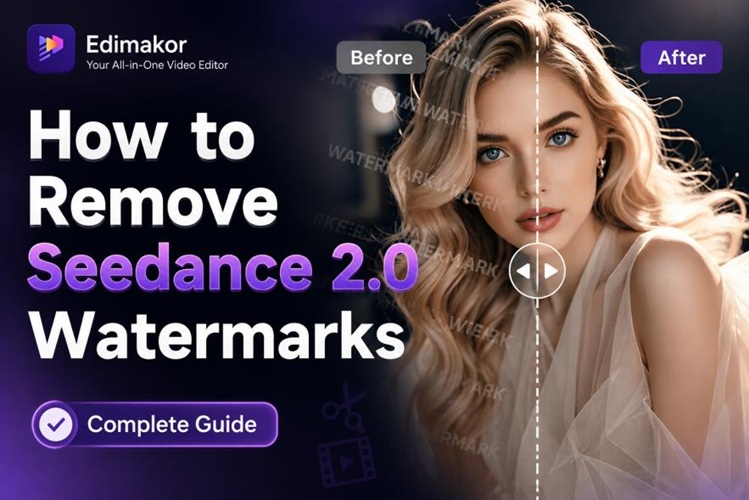
Seedance 2.0 is one of the most powerful AI video tools from ByteDance. It creates stunning, realistic videos in seconds.
But there is a catch. Every video it generates comes with a visible watermark. You can see the Seedance logo and an "AI-Generated" label stamped on your content. It makes your videos look less professional and hurts your reach on social media. The good news? You can remove it.
This guide shows you the way to generate watermark-free Seedance videos and how to remove the Seedance 2.0 watermark in 2 steps.
Part 1. What is the Seedance 2.0 Watermark?
When you generate a video with Seedance 2.0, it adds a visible brand mark to your footage. It usually appears as the Seedance logo in a corner of the video. It also includes an "AI-Generated" label. This label is not just a style choice. Many social platforms now require AI content to be clearly marked. Some even have laws or policies that demand this disclosure.
On top of that, Seedance embeds invisible metadata in your video. Platforms can detect this digital fingerprint even if you try to crop the visible watermark out. So, a smarter approach to removal is needed.
Part 2. Why You Need to Remove the Seedance 2.0 Watermark
Here are three reasons why the watermark hurts your content:
- Platform Algorithm Suppression: Because of social media algorithms (like Instagram's, TikTok's, & YouTube's), watermarked videos may receive reduced reach on some platforms. Therefore, even if your video was an awesome piece of content, the chances of someone seeing it are less, because a watermarked video is pushed down in the feed.
- Commercial Delivery Value: If you are giving your AI-generated video to a client or using it in your ads, the watermark makes your video look cheap or low-quality, thereby lowering the chances that the company will use your services again.
- Viewer Engagement and CTR: Viewers trust clean videos more. A watermark distracts the eye. It draws attention away from the message.
Part 3. What Makes the Best Seedance 2.0 Watermark Remover?
Not every tool can handle AI video watermarks. Here is what to check before choosing one:
- AI-Powered Inpainting Technology: A good AI video watermark remover does not just crop or blur the watermark. It uses AI to fill in the area with matching pixels. The result looks natural, as if the watermark was never there. It keeps your video looking smooth and professional.
- No Quality Loss: The best AI watermark remover tools maintain the original resolution and color of the video. After removal, the video should look sharp and clear. Poor tools show blurry patches or pixelated spots.
- Batch Processing: If you create many AI videos, you need a tool that can process multiple files at once. A batch watermark remover saves you hours of manual work, letting you upload several video clips and clear all watermarks in one session.
- Built-In AI Video Generation: The smartest solution is to skip the watermark from the start. The best tools let you generate AI videos directly within the app, giving you clean, watermark-free footage without any extra editing steps.
Hitpaw Edimakor covers all four of these criteria. It combines AI inpainting, lossless output, batch processing, and built-in video generation in one place, making it a reliable choice for creators and professionals alike.
Part 4. How to Remove Seedance 2.0 Watermark Step by Step
There are two ways to get videos without Seedance 2.0 watermarks using Hitpaw Edimakor, a powerful AI video tool. Generate a watermark-free AI video or remove a video watermark without losing quality.


Method 1: Generate Watermark-Free AI Videos in Edimakor
It is the cleanest method. Instead of removing a watermark after the fact, you can generate watermark-free videos inside Edimakor. The output is clean from the start.
Step 1: Open Edimakor and go to Toolbox. Select AI Video Generator.

Step 2: Use AI Prompt Generator. Select Seedance 2.0 as your generation model.
Step 3: Upload your pictures(if needed) and type the prompt. Click Generate. The generation will finish in seconds. Your file is saved without a watermark, logo, or generated label.
This is the fastest way to get clean, watermark-free footage from Seedance 2.0.
Method 2: Use Edimakor as an AI Watermark Remover Tool
Already have Seedance videos with watermarks? Follow these steps to remove them:
Step 1: Launch Edimakor, then click Toolbox. Go to AI Tools and select Watermark Remover .
Step 2: Import your videos. You can import up to 10 videos at once. Choose Remove Watermark. Resize the box to cover the logo and the AI-generated label. Then click Remove. The file will be auto-saved in the Result folder.
FAQs
A1: There are a variety of free online tools, but they don't handle large amounts of data or deliver high-quality results. An AI video editor like Hitpaw Edimakor would be more helpful.
A2: Yes. Edimakor supports batch video watermark removal. Upload multiple clips and remove their watermarks in one session, saving your time.
A3: Not with Edimakor! It maintains the original resolution and color. The video looks sharp and clean, with no patches or blurring. And you can use Video Enhancer to upscale your original videos.
A4: Yes. Edimakor handles one-hour video files. The AI processes the timeline and applies watermark removal across different frames.
Conclusion
The Seedance 2.0 watermark doesn't have to hold your content back. If you want to generate an AI Video or remove a watermark from an existing Video, Edimakor does it. It's a fast, accurate, easy-to-use solution.
The generated videos are professional and watermark-free so that you can share or publish them. Stop letting a logo limit your work. Download Edimakor today and take full control of your AI-generated content.
Leave a Comment
Create your review for HitPaw articles