With so much funny content on social media, every user strives to become a creator. The best way to get noticed on social platforms quickly is by posting meme content. Green screen meme videos can take this idea even further by allowing you to place yourself, characters, or funny reactions into almost any background or situation. Whether you want to create hilarious reaction videos, relatable jokes, trending memes, or entertaining short-form content, the green screen effect gives you a wide range of possibilities. In this guide, we’ll show you how to make a green screen meme, along with some creative ideas.
Part 1: What is a Green Screen Meme?

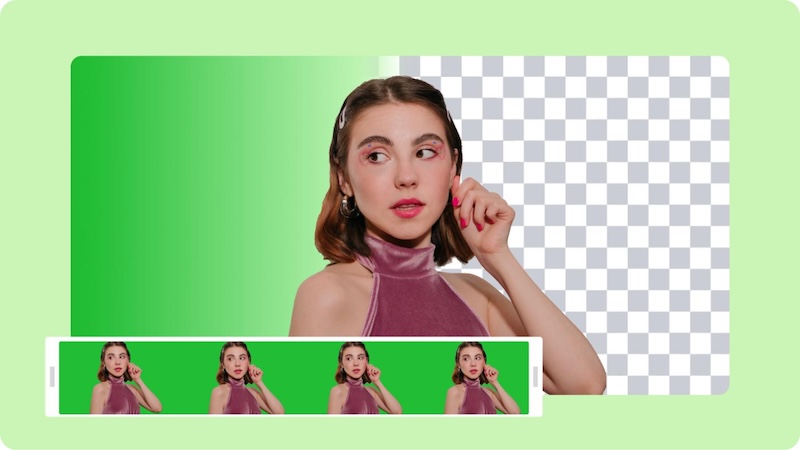
A green screen meme is a type of video or image that uses the green screen effect to place a person, character, or meme clip over a different background. Instead of keeping the original green background, video editing software removes it and replaces it with another image, video, or scene. Green screen memes are popular because they allow creators to combine funny reactions with trending scenes, movie clips, and gaming footage.
Part 2: How to Make Green Screen Meme Videos Step by Step
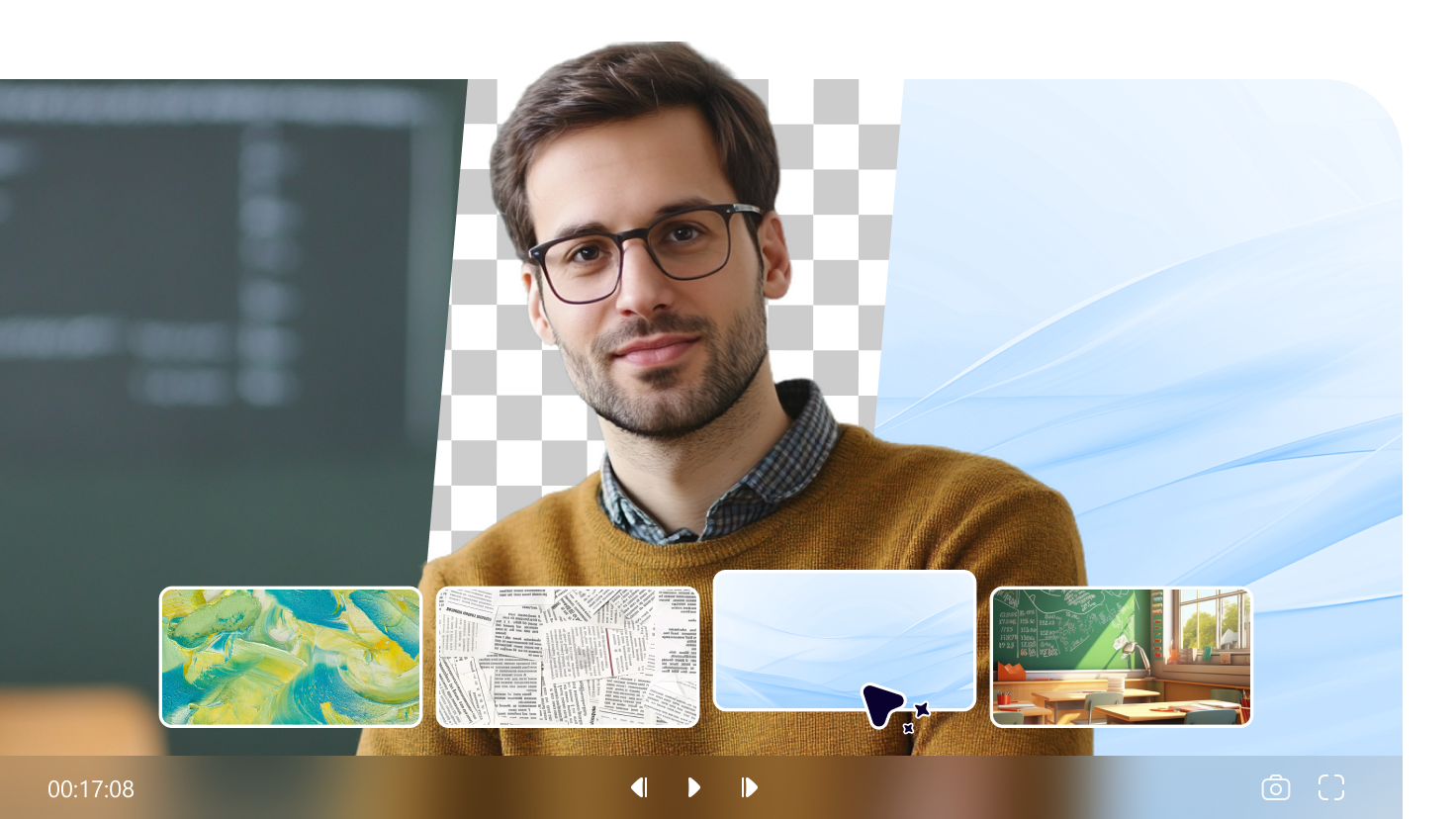
If you want to create green screen memes, you must use an advanced AI video editor. HitPaw Edimakor is a user-friendly option that provides editing features to help you create engaging and entertaining meme videos without requiring advanced editing skills. The program offers advanced editing capabilities, allowing users to turn normal videos into funny memes within seconds. With its background removal tool, AI-powered features, effects, filters, transitions, text option, and audio tools, you can easily customize your videos and give them a professional look. Another amazing feature of HitPaw Edimakor is that it supports features like Text-to-Video, allowing users to create high-quality memes with a simple text prompt. Simply enter the meme prompts, choose the AI model, and click on the “Generate” button. Within seconds, your AI meme will be ready. Users can download memes in multiple formats, such as GIFs, MP4, AVI, and MOV.
Key Features of HitPaw Edimakor
- Green Screen Meme Videos: HitPaw Edimakor enables users to easily create entertaining green screen meme videos by removing backgrounds and replacing them with images, videos, or other creative scenes.
- Text-to-Memes: With the help of this tool, users can create high-quality meme videos with simple text prompts. Simply enter the meme prompt, choose the AI model, and click on the “Generate” button.
- Advanced Editing Capabilities: The program offers a wide range of advanced editing tools that allow users to trim, cut, crop, split, and merge videos with ease. You can also add filters, effects, text, stickers, animations, and sound effects.
- Powerful AI Tools: HitPaw Edimakor supports a wide range of AI tools, such as Text-to-Video, Image-to-Video, AI Video Editor, AI Video Enhancer, Background Removal, Effects, and more.
- Intuitive Interface: The best part of HitPaw Edimakor is that it offers an easy-to-use interface, allowing users to create green screen memes without professional help or editing experience.


Step-by-Step Guide:
In this section, we’ll show you how to turn a normal video into a green screen background and then add a meme to create an engaging and entertaining green screen meme video. Here is how to do it:
Step 1: Launch HitPaw Edimakor
Go to the HitPaw Edimakor official site and download the latest version of the tool on your PC. Launch it and click on the “New Project” option to begin the process. Hit the “Import” button and upload the video you want to use as the green screen background. After importing the footage, add it to the timeline to begin customizing your meme video.
Step 2: Add The Green Background
First, we’ll remove the current background of the video. Click on the “Remove BG” option available on the right panel and enable “Auto Removal.” This will automatically remove the background of your video. Navigate to “Stock Media > Background” and select the green background you want to use. Then, add it to the timeline and position it beneath your main video.
Step 3: Add Your Meme Video
Now, import the meme video or image you want to add to your green screen video. Click “Import” and select the desired media from your PC. Once imported, drag it onto the timeline and place it above the green background layer.
Step 4: Customize the Meme
Next, use the video editor to customize the meme according to your requirements. You can add text, captions, stickers, emojis, filters, transitions, and visual effects. To make your meme video more engaging, add funny sound effects.
Step 5: Preview and Export The Video
Once you have finished editing, preview the final result. If you’re satisfied with your meme video, click the “Export” button available at the top right corner. Choose your preferred resolution and format, and hit the “Export” button again to begin the download.
Part 3: Best Green Screen Meme Ideas to Try
Now you have an idea of what meme green screen is and how to create one. It’s time to get creative and experiment with different concepts that can make your videos more entertaining and shareable. Here are some of the best green screen meme ideas you can try:
1. Reaction Meme
Reaction memes are trending on social media platforms and are simple to create. You can record yourself reacting to a specific situation and use the green screen effect to place your reaction over a funny image, video, movie scene, or trending clip. To make the meme funnier, you can add funny background sound effects, emojis, and text.
2. Kombucha Girl Meme
Content creator Brittany Broski tried kombucha for the first time and uploaded a mixed-reaction video to TikTok. The meme instantly became one of the most popular reaction memes on social media. Her expression, which changes from excitement to disgust, makes the clip perfect for humorous situations. You can use a green screen to place yourself alongside the famous reaction.
3. Pet Memes
Put your pet in hilarious green screen settings, like outer space or a dance floor. Pets in such content become the star of the show and get you quick likes. You can record your pet doing something cute or unexpected and then replace the background with a funny scene.
Part 4: FAQs Related to Green Screen Meme
A1: Yes, you can upload green screen memes online and share them across popular social media platforms such as TikTok, Instagram, YouTube, Facebook, and X.
A2: With HitPaw Edimakor, you can easily download meme videos into GIF format. When exporting the video, choose the file format as GIF and click on the “Export” button.
Conclusion
Green screen memes are trending online and have become a popular way to create funny and engaging social media content. With the right video editing tool, such as HitPaw Edimakor, you can easily create high-quality and engaging green screen memes. The best part of this tool is that it offers an intuitive interface, allowing users to create memes and edit them without professional help or editing experience.
Leave a Comment
Create your review for HitPaw articles