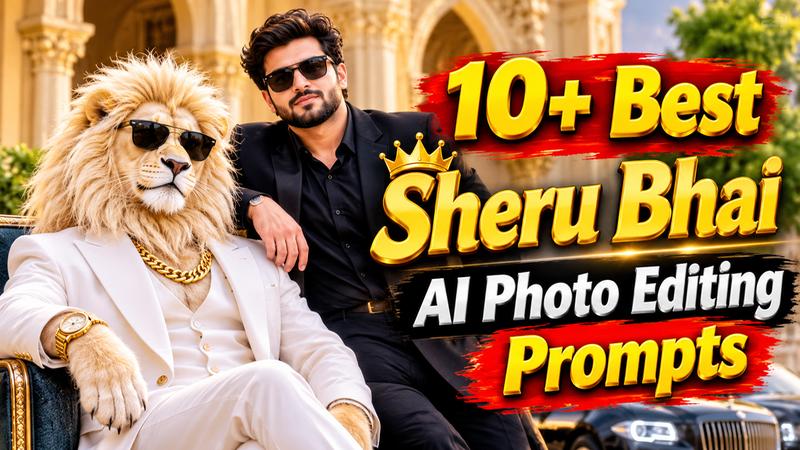
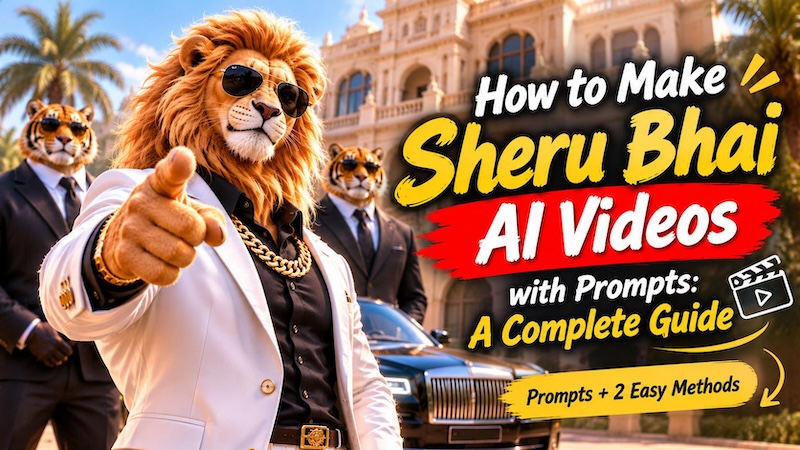
Have you seen those viral Sheru Bhai AI videos featuring a lion gangster in a luxury suit, driving expensive cars, entering grand palaces, or getting into funny situations with other animals? These videos combine AI-generated characters, cinematic scenes, and entertaining stories, making them popular across short-video platforms.
The good news is that you don't need professional animation skills to create similar videos. With HitPaw Edimakor, you can turn a simple story idea or a collection of AI prompts into a complete AI story video.
In this guide, I'll share some ready-to-use Sheru Bhai AI video prompts and show you two ways to make these videos with Edimakor. Whether you already have your prompts and story planned or are starting with nothing but an idea, you can find a workflow that works for you.


Part 1. What Are Sheru Bhai AI Videos?
Sheru Bhai AI videos are short, AI-generated story videos featuring an anthropomorphic lion character, often portrayed as a confident gangster or wealthy boss. The character usually wears stylish suits, gold chains, and other luxury accessories, appearing in dramatic or humorous situations.
What makes these videos interesting is their storytelling style. Instead of simply showing an animated lion, creators build short stories around the character. For example, Sheru Bhai might arrive at a luxury car auction, challenge a tiger to a competition, or show off his extravagant lifestyle.
Most of these videos combine several creative elements:
- AI Characters: Human-like lions, tigers, and other animals with recognizable appearances.
- AI-Generated Scenes: Luxury mansions, busy streets, auction halls, and other cinematic environments.
- Storytelling: Simple conflicts, funny interactions, and unexpected endings.
- Voiceovers and Music: Character dialogue, background music, and sound effects that bring the story to life.
To create your own Sheru Bhai AI video, you'll need character images, scene descriptions, video prompts, and some editing. Let's look at how to prepare the prompts first.
Part 2. Best Sheru Bhai AI Video Prompts You Can Copy and Use
A good prompt makes a big difference in AI-generated videos. When writing a Sheru Bhai video prompt, I recommend describing the character's appearance, clothing, actions, environment, and camera movement rather than simply saying what you want the video to show.
Here are five prompts you can use as starting points. You can also customize the outfits, locations, and actions to develop your own story.
1 Sheru Bhai AI Character Image Prompt
Before creating multiple scenes, I recommend generating a main character reference image. This helps establish Sheru Bhai's appearance so you can reuse the same character design throughout your story.

A powerful anthropomorphic white lion named Sheru Bhai, with a thick golden mane, sharp expressive eyes, and a confident personality. He wears a tailored white luxury suit, a black shirt, and a heavy gold chain. Standing confidently with his arms crossed, full-body character design, realistic detailed fur, cinematic 3D animation, professional character rendering, dramatic studio lighting, plain background, vertical composition.
2 Sheru Bhai Gangster Entry Video Prompt
A dramatic entrance is a great way to introduce Sheru Bhai. This prompt creates a cinematic scene with a luxury car and bodyguards.
Sheru Bhai, a powerful anthropomorphic white lion wearing a white luxury suit and a gold chain, steps out of a black sports car in front of a grand palace. Two tiger bodyguards stand behind him. He slowly adjusts his suit, walks confidently toward the palace entrance, and gives a serious look at the camera. Smooth tracking shot, realistic character movement, detailed fur animation, cinematic lighting, high-quality 3D animation, vertical 9:16.
3 Sheru Bhai Luxury Lifestyle Video Prompt
If you want to create a video showing Sheru Bhai's wealthy lifestyle, try this prompt.
An anthropomorphic white lion gangster named Sheru Bhai relaxes on a luxurious golden sofa inside a massive modern mansion. He wears a black designer suit, a thick gold chain, and a luxury watch. A large chandelier hangs above him, while expensive sports cars are visible through the glass windows. He casually picks up a glass, smiles confidently, and looks toward the camera. Cinematic camera movement, realistic fur details, luxurious atmosphere, high-quality 3D animation.
4 Sheru Bhai Funny Story Video Prompt
Not every Sheru Bhai video needs to be serious. Adding a funny situation or unexpected reaction can make your story more entertaining.
Sheru Bhai, a confident anthropomorphic white lion wearing a stylish white suit, stands beside a luxury sports car at an outdoor car show. A cheeky tiger wearing a colorful jacket approaches and proudly shows off his smaller car. Sheru Bhai looks at the car, raises one eyebrow, and bursts into laughter. The tiger reacts with an embarrassed expression. Expressive character animation, humorous storytelling, smooth camera movement, detailed 3D animation, vertical 9:16.
5 Sheru Bhai Action Scene Video Prompt
For a more dramatic story, you can create a confrontation between Sheru Bhai and another animal character.
Sheru Bhai, a muscular anthropomorphic white lion wearing a dark luxury suit and gold chain, faces a powerful tiger gangster inside a dramatic underground parking garage. The tiger steps forward aggressively while Sheru Bhai remains calm and confident. They exchange intense looks as the camera slowly moves closer. Dramatic shadows, cinematic lighting, realistic fur and facial expressions, detailed 3D animation, suspenseful atmosphere, vertical 9:16.
Tip:
These prompts are designed as starting points. For Image-to-Video generation, focus on describing movement and camera actions. For Text-to-Image generation, focus more on the character's appearance, clothing, and visual style.
Part 3. What You Need to Make Sheru Bhai AI Videos
Before starting, prepare a few basic elements:
- A story idea: Decide what Sheru Bhai will do and what happens in the story.
- Character references: Create images of Sheru Bhai and other characters.
- Scene descriptions: Plan the locations and actions for each part of the story.
- Video prompts: Describe how characters and objects should move.
- Audio elements: Prepare dialogue, background music, and sound effects.
For this tutorial, I'll use HitPaw Edimakor , which offers two different ways to create AI story videos. Its Text to Image and Image to Video features are useful when I want more control over individual scenes. The AI Video Generator is another option when I want to start with a story idea and let AI help organize the creation process.
Part 4. [Method 1] Make Sheru Bhai AI Videos with Text-to-Image and Image-to-Video
This method is ideal if you've already prepared your story, image prompts, video prompts, and scene plan. Instead of generating the entire video at once, you can create each character and scene separately, then combine everything on the editing timeline.
Step 1: Generate Sheru Bhai Character Images with Text to Image
First, open HitPaw Edimakor and find the Text to Image feature. Enter your Sheru Bhai character prompt to generate the main character image.
I recommend starting with a full-body image that clearly shows the lion's face, mane, clothing, and accessories. Once you find an appearance you like, save the image and use it as a visual reference when creating subsequent scenes.
If your story includes other characters, such as a tiger gangster or an elephant bodyguard, you can generate their reference images as well.
Step 2: Turn Character Images into Videos with Image to Video
Next, open the Image to Video feature and upload the character image you just created.
Enter your video prompt to describe the action you want the character to perform. For example, you can ask Sheru Bhai to walk toward a luxury car, adjust his jacket, or enter a palace with his bodyguards.
When writing the prompt, I recommend focusing on three things:
- Character Actions: What should Sheru Bhai do?
- Scene Details: Where does the action take place?
- Camera Movement: Should the camera follow the character, zoom in, or capture a wide shot?
Generate the video and check whether the character's movement matches your expectations. If the result doesn't look right, adjust the prompt and try again.
Step 3: Generate All Scenes and Edit Them on the Timeline
A complete Sheru Bhai AI story usually needs several short clips rather than one long video. Repeat the previous steps to generate the remaining scenes according to your storyboard.
Once all your clips are ready, import them into Edimakor's editing timeline and arrange them in the correct order.
Here, you can:
- Trim unnecessary parts of each clip.
- Adjust the order and duration of scenes.
- Add background music and sound effects.
- Insert subtitles or text to highlight important dialogue.
- Use transitions to make scene changes smoother.
Finally, play the entire video to check the story flow and make any necessary adjustments before exporting.
Part 5. [Method 2] Create Sheru Bhai AI Videos with AI Video Generator
What if you don't have any prompts or a complete storyboard? No problem. Edimakor's AI Video Generator provides a more guided workflow. You can start with a simple story idea and work through script generation, character creation, scene generation, and video editing.
I'll use a simple idea as an example: Sheru Bhai enters a luxury car auction and competes with a tiger to win a rare sports car.
Step 1: Enter Your Story Idea to Generate a Script
Open the AI Video Generator feature in Edimakor and enter your story idea in the input box.
You don't need to write a detailed script at this stage. A short description of the main character, setting, and story direction is enough to get started.
"On a street where luxury cars were parked, Sheru Bhai slowly walked out from beside the car. He was dressed in a white suit, with a thick gold chain around his neck. His expression was cold and his tail swayed naturally with his steps. The underlings around saw him and all made way.."
Based on your idea, AI will generate a script to organize the story into scenes.
Step 2: Review and Edit the Generated Script
Before generating any images or videos, take a moment to review the script.
Check whether the story makes sense, whether the characters behave as expected, and whether the scenes follow a logical order. You can also modify dialogue, add interesting details, or remove unnecessary parts.
I recommend paying special attention to the opening and ending. The first scene should catch viewers' attention, while the ending should give them a reason to keep watching.
Once you're happy with the script, click Next to continue.
Step 3: Create Character Images and Choose Character Voices
Now it's time to prepare the characters for your story.
Edimakor will generate the required character images based on the script. Review each character's appearance and make sure the main features match your intended design.
For example, Sheru Bhai might wear a white suit and gold chain, while the tiger rival wears a dark jacket. Keeping their visual characteristics clear makes it easier to recognize each character throughout the story.
Next, choose a suitable voice for each character. I recommend selecting voices that match their personalities. A deep, confident voice works well for Sheru Bhai, while a more energetic voice might suit a funny side character.
Step 4: Generate Scene Images
After preparing the characters, move on to scene image generation.
Edimakor provides prompts for the scenes based on your script. Follow the prompts to generate the corresponding images.
For example, your story might include:
- Sheru Bhai arriving at the luxury car auction.
- The tiger gangster showing off his supercar.
- Both characters competing during the auction.
- Sheru Bhai celebrating his unexpected victory.
Check the generated images before moving forward. Make sure the main characters, backgrounds, and scene compositions fit the story. If an image doesn't match your expectations, adjust the corresponding prompt where the workflow allows.
Step 5: Generate Video Clips and Customize Audio and Subtitles
Once the scene images are ready, you can start generating video clips.
Follow the prompts provided for each scene to turn the still images into animated clips. Review the generated results to make sure the characters' actions and scene transitions fit the script.
You can also customize several audio and text elements during this process:
- Background Music: Choose music that matches the mood of the story.
- Character Voiceovers: Use the voices selected for each character to bring the dialogue to life.
- Subtitles: Check and edit the subtitles to make conversations easier to follow.
For a gangster-style Sheru Bhai story, dramatic background music can work well for the entrance, while lighter sound effects can make funny scenes more entertaining.
Step 6: Preview and Export Your Sheru Bhai AI Video
After generating all the video clips, play the complete video and review it from beginning to end.
Here are a few things I usually recommend checking:
- Do the scenes follow the intended story?
- Do the characters look consistent across different scenes?
- Are the character voices and subtitles correct?
- Does the background music match the action?
- Are there any awkward movements or unnecessary pauses?
If everything looks good, export your finished video. You now have a complete Sheru Bhai-style AI story video ready to share on YouTube Shorts, Instagram Reels, or other short-video platforms.
Tips for Writing Better Sheru Bhai AI Video Prompts
Even with AI video tools, the quality of your prompts can affect the final result. Here are a few tips I find useful when creating AI animal story videos.
1. Describe Character Appearance in Detail
Don't just write "a lion gangster." Include details such as fur color, mane, clothing, accessories, facial expressions, and body shape. Reuse the same character description in different scene prompts to help maintain a consistent appearance.
2. Include Specific Actions and Camera Movements
Instead of saying "Sheru Bhai enters a palace," describe how he walks through the entrance, adjusts his suit, and looks toward the camera. You can also specify whether you want a tracking shot, close-up, or wide shot.
3. Keep Character Descriptions Consistent Across Scenes
If Sheru Bhai wears a white suit and gold chain in the first scene, avoid changing his outfit in the next scene unless the story requires it. Use the same reference image whenever the generation workflow supports it.
4. Break Complex Stories into Short Video Scenes
Trying to generate too many actions in one clip can make the result difficult to control. I recommend dividing your story into short scenes, each with one main action. This also makes editing and replacing individual clips much easier.
FAQs About Sheru Bhai AI Videos
A1: A Sheru Bhai AI video is a short AI-generated story featuring a human-like lion character, often shown as a wealthy gangster or confident boss. These videos combine AI-generated characters, animated scenes, voiceovers, and storytelling.
A2: Describe the character's appearance, clothing, actions, environment, and camera movement. For image generation, focus on visual details. For video generation, include specific movements and scene changes. Keeping character descriptions consistent also helps.
A3: Yes. With HitPaw Edimakor's AI Video Generator, you can start with a simple story idea. The tool helps generate a script, prepare character images, create scene images, and generate video clips through a guided workflow.
A4: You can use an Image-to-Video tool such as HitPaw Edimakor. First, generate or upload a Sheru Bhai character image, then enter a prompt describing the character's actions and camera movement to create an animated video clip.
A5: HitPaw Edimakor is one option for creating Sheru Bhai-style videos. It offers Text to Image, Image to Video, and AI Video Generator features, allowing you to create individual scenes or build a story from an initial idea.
Conclusion
Creating Sheru Bhai AI videos doesn't have to be complicated. If you already have image prompts, video prompts, and a storyboard, you can use Edimakor's Text to Image and Image to Video features to build each scene and edit the clips on the timeline.
If you only have a story idea, the AI Video Generator offers a more guided way to create your video, from script generation and character setup to scene creation and final export.
My suggestion is to start with a simple story, build a recognizable Sheru Bhai character, and experiment with different scenes and prompts. With a little creativity and the right workflow, you can turn your own AI story ideas into entertaining short videos with HitPaw Edimakor.
Leave a Comment
Create your review for HitPaw articles