AI talking-photo tools can turn ordinary portraits into videos with synchronized speech and facial movements. Vidnoz AI Talking Photo offers this experience through an online platform. Users can upload pictures, select voices, and generate speaking avatars without traditional video editing. However, free-plan restrictions and reported billing concerns deserve attention.
This Vidnoz AI review examines its main features, limitations, and a flexible alternative for creating talking-photo videos.
What Is Vidnoz AI Talking Photo?
Vidnoz AI Talking Photo is an online tool that animates still images using artificial intelligence. It converts a portrait into a speaking character by combining voice generation with facial animation and lip synchronization.
Users can upload their own pictures or select available avatar options. They can then enter a script, choose a language and voice, and generate a talking video. Some customization options include speech speed, pitch, volume, and background settings.
The tool is suitable for beginners, marketers, educators, and social media creators. It can help produce short explainers, promotional messages, presentations, and entertaining talking portraits.
Key Functions of Vidnoz AI Talking Photo
Vidnoz combines several features to simplify talking-photo creation. Here are its main capabilities and how they support different video projects.
Photo-to-Video Animation
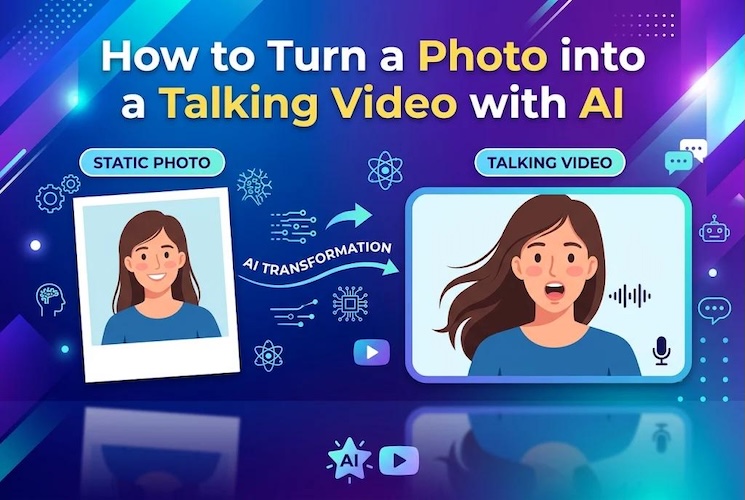
The main feature transforms static portraits into animated talking videos. Users can upload a suitable photograph or select an available avatar. The AI analyzes facial features and generates movements that accompany the selected speech.
This feature is useful for turning profile pictures, presenter portraits, and character images into short videos. Clear, front-facing photographs generally provide better starting material.
AI Voice Generation
Vidnoz includes text-to-speech functionality for generating speech from written scripts. Users can choose from available languages and voices. Depending on the available settings, they can also adjust speech speed, pitch, volume, and emotional delivery.
This removes the need to record every line manually. It is particularly useful for creators producing short announcements, educational clips, and promotional messages.
Lip-Sync Animation
The lip-sync feature coordinates mouth movements with generated or uploaded speech. It helps the animated portrait appear as though it is speaking the selected script.
The result depends on the source photograph, voice quality, and animation settings. Clear facial visibility can improve processing, while unsuitable images may produce less convincing movements.
Avatar and Template Library
Vidnoz provides a library of ready-made avatars and video templates. Users can choose an existing character instead of uploading a personal photograph.
Templates can also simplify video creation for presentations, marketing, and educational content. This makes the platform useful for beginners who want a quicker starting point.
Where Vidnoz AI Talking Photo May Fall Short
Vidnoz offers an accessible workflow, but it may not satisfy every creator. Consider these limitations before choosing it for regular video production.
1 Limited Creative Control
The tool focuses mainly on animating portraits and generating speech. Users who want detailed control over character movements, scene composition, and visual storytelling may need additional editing tools.
2 Free-Plan Restrictions
Vidnoz offers a free plan, but its allowances are limited. The official pricing page lists restrictions on daily photo avatars, export resolution, and available features. Free exports also include a Vidnoz watermark. These limits may become inconvenient when producing multiple videos or working on longer projects. Check the current pricing page before relying on a particular allowance.
3 Editing Flexibility
Vidnoz supports avatar customization and provides broader video creation tools. However, creators who need detailed timeline editing may prefer a dedicated desktop editor. They may also want more control over subtitles, audio adjustments, and combining multiple visual elements.
4 Evaluating User Reviews
Customer feedback deserves consideration, too. Some Trustpilot reviewers have reported difficulties with free access, credits, subscriptions, or cancellation. These are individual experiences rather than proof that every customer encounters the same problems. Still, reviewing billing terms before subscribing is sensible.
Best Vidnoz Alternative for Creating Talking Photo
If you want more flexibility after generating a talking portrait, consider HitPaw Edimakor . It combines AI talking-photo generation with voice preparation and additional video-editing options.
Unlike a workflow focused only on online avatar generation, Edimakor lets you continue working with the generated result. You can add subtitles, adjust audio, include stickers, and refine the video before exporting.
What Makes Edimakor Worth Considering?
- Realistic Voice Options : Edimakor offers text-to-speech voices with different languages, genders, and speaking styles. You can also import existing audio or record your own voice. Its voice-cloning feature provides another option for creating personalized speech.
- Multilingual Subtitle Support : Edimakor supports multilingual talking-photo and lip-sync workflows. You can add subtitles to generated videos and customize their appearance during editing. This helps creators prepare content for different audiences and improve accessibility.
- Different Visual Styles : You can work with realistic portraits and AI-generated characters. Edimakor’s AI Avatar tools also support different visual styles, including cartoon animals and 3D-inspired characters.
- Flexible Character Creation : You can upload your own photograph to create your AI twin or create a character using AI avatar generation. It also offers character customization options. This makes it easier to build a presenter or visual identity that matches your content.


Follow these steps to create your first talking-photo video.
Step 1: Download and install HitPaw Edimakor on your computer. Launch the application and select “AI Avatar” from the main interface. Open the “Talking Photo” option to access the generation workspace.

Step 2: Import a clear portrait or create a suitable character image. You can use a personal photograph, an AI-generated portrait, or another image you have permission to use.
Step 3: Prepare the speech your character should deliver. You can enter text and use Text to Speech, import an existing audio file, or record your voice directly. Choose a suitable voice and preview the audio before continuing.
Step 4: Once your image and audio are ready, click “Generate.” Edimakor will process the portrait and synchronize its facial movements with the selected speech. Wait for processing to finish, then open the generated result.
Step 5: Preview the generated video and check whether the lip movements match the speech. Add subtitles, adjust audio volume, or include stickers if needed. When satisfied, click “Export” and select your preferred output settings.
FAQs
A1: Vidnoz offers free talking-photo creation, but the free plan has usage restrictions. Daily generation allowances, export resolution, watermarks, and available features can differ by plan. Check its current pricing page before starting a project.
A2: Yes. Vidnoz uses AI animation and lip synchronization to make portraits appear to speak. Results depend on image quality, facial visibility, and the selected voice. Some generated movements may still look artificial.
A3: Vidnoz advertises commercial-use options for its talking-photo tool. However, you should review the current licensing terms and confirm that you have permission to use uploaded photographs, voices, and other assets commercially.
A4: HitPaw Edimakor is worth considering if you want talking-photo generation alongside additional editing tools. It supports voice preparation, lip synchronization, subtitles, and further video customization.
Conclusion
Vidnoz AI Talking Photo offers a simple way to animate portraits and create speaking avatars. Its voice options and template library make it useful for beginners. However, free-plan restrictions and reported billing concerns deserve attention. HitPaw Edimakor offers another option with talking-photo generation and additional editing flexibility. Try Edimakor to create personalized talking-photo videos with synchronized voices and subtitles.
Leave a Comment
Create your review for HitPaw articles