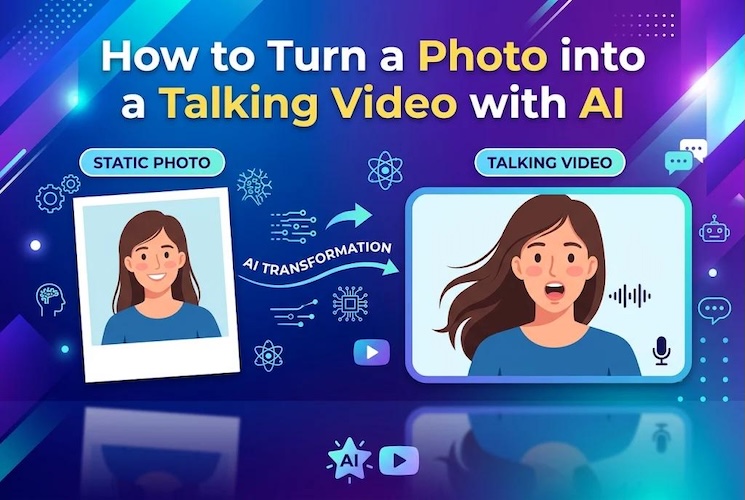
A still photograph can become more engaging when it starts speaking. AI tools now make it possible to animate portraits, synchronize speech, and create short videos without traditional filming.
You only need a suitable image, a script or audio track, and an AI tool. Whether you want social media content or educational presentations, this guide explains how to turn a photo into a talking video with AI.
What Can You Use Talking-Photo Videos For?
Talking-photo videos have several practical applications. Their visual style and production method should match the intended audience and publishing platform.
Social Media Content
Creators can use talking portraits to share tips, introduce topics, and explain ideas. A speaking character can make an announcement more engaging than a static image.
For example, a creator can animate a photo to talk and introduce a daily tip. Add captions and background music to make the message easier to follow.
Educational Presentations
Teachers and educators can use talking-photo videos to make lessons more interactive. This approach can make educational material more interesting for younger audiences.
A teacher might animate a historical portrait to explain an important event. Similarly, a character from a children’s story can introduce a lesson.
Personalized Greetings
Talking photos can turn personal messages into memorable videos. You can animate a family portrait, create a birthday greeting, or make a fictional character narrate a short story.
Old photographs can also become part of digital storytelling projects. However, obtain permission before animating or publishing another person’s likeness.
Marketing Content
Businesses can use talking-photo videos to share promotional messages. A branded character or virtual presenter can deliver a short product introduction without arranging a traditional shoot.
For example, an online store could create a talking presenter explaining a product’s main benefits. Keep the video concise and use a clear call to action.
What Do You Need to Make a Photo Talk?
You do not need professional filming equipment to create a talking-photo video. However, preparing the right materials can improve the final result. Gather these three essentials before opening an AI talking-photo generator.
1 A Clear Source Photo
Start with a high-quality photograph that clearly shows the subject’s face. Front-facing portraits generally provide a better starting point because facial features remain visible.
Avoid images with heavy shadows, blurry details, covered mouths, or extreme side angles. Make sure you have permission to use the photograph.
2 A Script or Audio Track
Prepare the words your character should speak. Keep the script concise and use natural sentences. Short paragraphs are easier to review and help prevent unnecessarily long videos.
You can record your own voice, import an existing audio file, or use text-to-speech. If you choose AI-generated speech, preview the voice before generating the animation.
3 An AI Talking-Photo Tool
A good AI talking photo generator should offer more than basic facial animation. Look for these features:
- Accurate lip synchronization
- Text-to-speech voice generation
- Audio upload and recording
- Multiple voice and language options
- Video preview and editing
- Flexible export settings
These features give you more control over the final result. Choose a tool that supports your preferred workflow and output format.
How to Turn a Photo into a Talking Video with AI
HitPaw Edimakor offers a dedicated Talking Photo feature for animating still images. You can upload a photograph, prepare speech, and generate synchronized facial movements. It also supports text-to-speech, imported audio, and direct voice recording. You can animate your photo and create AI Twin videos easily.


The following steps explain how to make a photo talk using Edimakor.
Step 1: Access the Tool
Download and install HitPaw Edimakor on your computer. Launch the application and select “Talking Photo” from the main interface.

Step 2: Upload Your Photo
Import the photograph you want to animate. Choose a clear image with visible facial features and sufficient lighting. A front-facing portrait usually provides a better starting point for lip synchronization.
Step 3: Add Speech or Audio
Next, prepare the speech for your character. Edimakor provides three options for adding audio.
- Text to Speech: Enter your script and select an AI voice.
- Local Audio: Import an existing MP3, WAV, or AAC file.
- Record Voice: Record your speech directly inside the application.
Choose a voice that matches the character and message. Preview the audio before generating the video. Check the pronunciation, volume, and pacing.
Step 4: Configure and Generate
Once your photograph and audio are ready, review the available settings. Click “Generate” to start the animation process.
Edimakor analyzes the photograph and synchronizes facial movements with the audio. Processing time depends on the project and system conditions.
Step 5: Refine and Export
Preview the generated video before exporting it. Check whether the mouth movements match the speech. Look for facial distortions, awkward pauses, and unnatural expressions.
You can add the generated clip to the editing timeline. Adjust audio volume, add subtitles, and include stickers if they suit your content.
When everything looks right, click “Export” in the top menu. Select your preferred output settings and save the video.
The 4 Problems That Ruin a Talking Photo
Even a good AI talking-photo tool can produce imperfect results. Image quality, audio preparation, and animation settings all affect the outcome. These four problems are common, but a few adjustments can help.
1 The Mouth Movements Look Unnatural
Poor lip synchronization can make a talking portrait look artificial. This may happen when the source image has an unclear mouth or the audio contains unusual pauses.
How to fix it:
Use a clear, front-facing portrait. Prepare clean audio with natural pacing. Avoid extremely fast speech and excessive background noise.
2 The Voice Does Not Match the Character
A mismatch between the character’s appearance and voice can make the video feel disconnected. For example, an expressive animated character may sound unnatural with a very flat delivery.
How to fix it:
Preview different voices before generating the animation. Consider the character’s personality, age presentation, and intended audience. Adjust the script to sound more conversational.
3 The Face Looks Distorted
AI photo animation can sometimes create unusual facial movements or visual artifacts. Low-resolution photographs, obstructed facial features, and extreme angles may contribute to these problems.
How to fix it:
Start with a high-quality portrait. Keep the face unobstructed and avoid images with exaggerated angles. Try another source photograph if the result remains distorted.
4 The Video Feels Too Static
A talking portrait may become repetitive when only the mouth moves. This is especially noticeable in longer videos with no visual changes.
How to fix it:
Keep the message concise and use subtitles to maintain visual interest. You can also add relevant images, transitions, or supporting footage during editing. Avoid adding unnecessary effects that distract from the speaker.
FAQs
A1: Yes. You can use text-to-speech instead of recording yourself. Enter your script, select an available AI voice, and generate the talking video. Some tools also support imported audio.
A2: Use a high-resolution, front-facing portrait with clear facial features. Good lighting and an unobstructed mouth can help produce better lip synchronization. Avoid blurry images and extreme side angles.
A3: Yes. Some AI avatar tools support animal and cartoon characters. You can upload a suitable animal image, add speech, and generate an animated result. The quality depends on the tool and selected model.
Conclusion
Learning how to turn a photo into a talking video is easier with modern AI tools. You only need a suitable photograph, clear speech, and a reliable talking-photo generator.Edimakor brings image animation, voice preparation, and lip synchronization into one workflow. Prepare your portrait, refine the generated result, and create engaging videos for different platforms. Try HitPaw Edimakor to bring your photos to life.
Leave a Comment
Create your review for HitPaw articles