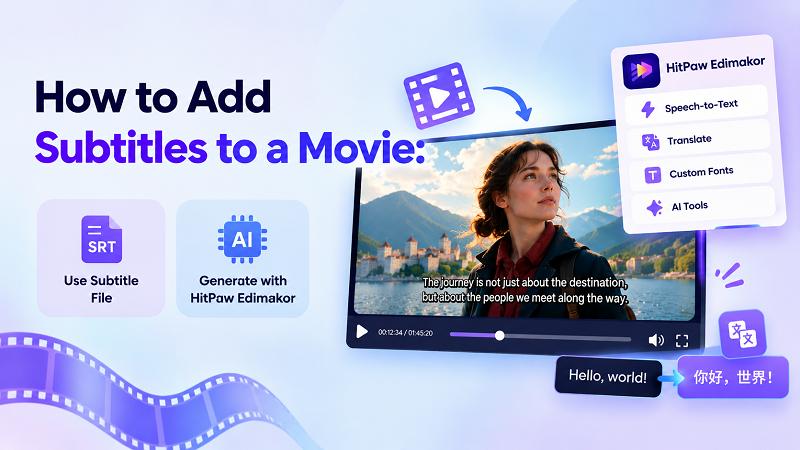
Have you ever watched a movie where the dialogue was difficult to understand, or the characters spoke a different language? Subtitles make movies easier to follow by displaying spoken dialogue as text on the screen. They are particularly useful for foreign-language films, noisy environments, and viewers with hearing difficulties.
However, figuring out how to add subtitles to a movie can be confusing, especially when you are unfamiliar with video editing. This guide explains two practical methods for different situation, with step-by-step instructions to help you add subtitles for film .
Method 1. How to Add Subtitles to a Movie with a Subtitle File
If you already have a subtitle file, importing it into a video editor is one of the simplest ways to add subtitles to movie projects.
Subtitle files, such as SRT, contain dialogue text and timestamps that determine when each subtitle appears. These files are commonly available for movies, documentaries, and educational videos.
HitPaw Edimakor allows you to import supported subtitle files, adjust their appearance, and synchronize them with your movie. This method is particularly useful when you have professionally translated subtitles or want to preserve existing dialogue timings.
Step 1: Launch HitPaw Edimakor and Create a Project
Download and install HitPaw Edimakor on your computer. Launch the software and select New Project from the home screen.


Once the editing workspace opens, click Import to upload the movie from your computer. Drag the imported video onto the timeline to begin editing.
Step 2: Open the Subtitle Import Section
Next, click Import Subtitle to locate the subtitle file saved on your computer. Select the supported file and import it into your project. Edimakor will use the file’s timestamps to position the subtitles along the movie timeline.
Step 3: Customize the Subtitle Appearance
After importing your subtitle file, choose a suitable subtitle style from the available templates.
Select different text styles to improve readability and match the movie’s visual style. For example, white subtitles with a dark outline are often easier to read against changing backgrounds.
Preview the movie and check whether the subtitles appear at the correct moments. If necessary, adjust their timing or formatting before exporting.
Method 2. How to Attach Subtitles to a Movie Automatically
What happens when you have a movie but no subtitle file? Manually transcribing every conversation can take hours, particularly for longer videos. Fortunately, automatic subtitle generation provides a much faster alternative.
HitPaw Edimakor includes an AI-powered Speech-to-Text feature that analyzes spoken dialogue and converts it into timed subtitles. This approach is especially helpful for content creators, educators, filmmakers, and anyone wondering how to add subtitles to a movie without manually typing every sentence.
Why Use HitPaw Edimakor for Automatic Subtitles?
HitPaw Edimakor simplifies subtitle creation by combining transcription, editing, and video export features within one interface.
Its automatic subtitle functionality can help you:
- Convert spoken dialogue into subtitle text.
- Generate AI captions without manually transcribing the entire movie.
- Choose more than 130 spoken language for transcription.
- Edit subtitle text to correct recognition mistakes.
- Customize subtitle styles and appearance.
- Support exporting multiple subtitle formats or videos with subtitles included.
Steps to Generate Movie Subtitles Automatically
Step 1: Open the Auto Subtitles Feature
Launch HitPaw Edimakor and navigate to AI Tools from the home screen. Find the Auto Subtitles feature and click it to open the automatic subtitle generation interface.
This feature allows you to upload a video and create captions from its spoken audio.
Step 2: Import Your Movie
Click Import Video in the Auto Subtitles window. Browse your computer, select the movie you want to subtitle, and upload it into Edimakor. Once imported, the movie will appear in the editing workspace, where you can prepare it for automatic transcription.
Step 3: Select the Spoken Language
Now go to the subtitle settings panel and locate Original Language. Choose the language spoken in your movie. Selecting the correct language helps the speech recognition system interpret dialogue more accurately.
If you need translated subtitles, check the available translation settings and select your desired target language where supported. Next, click Add Subtitles to begin generating captions.
Step 4: Review and Customize the Generated Subtitles
After processing, review the subtitles against the movie’s dialogue. Play different sections to identify missing words, incorrect punctuation, or timing problems. Make corrections where necessary, particularly when characters speak quickly or background music interferes with recognition.
You can also explore the available subtitle styles and choose a design that complements your video.
Keep the text readable and avoid overly decorative fonts that may distract viewers from the movie.
Step 5: Export Your Movie
Once you are satisfied with the subtitles, click Export in the upper-right corner. In the export window, choose your preferred video format, resolution, and other available output settings.
You can also check the subtitle export options if you need a separate subtitle file. Finally, click Export to save the completed movie to your computer.
FAQs About Adding Subtitles to a Movie
A1: You can use an automatic subtitle generator such as HitPaw Edimakor. Import your movie, open the Auto Subtitles feature, select the spoken language, and generate captions using AI speech recognition. Review the subtitles before exporting the video.
A2: Yes. You can permanently embed subtitles using a video editor that supports subtitle overlays. Add or generate subtitles, customize their appearance, and export the movie with the text rendered into the video frames. These subtitles remain visible during playback.
A3: SRT is one of the most widely used subtitle formats because it stores dialogue text and timing information in a simple structure. Other subtitle formats exist, but compatibility depends on the editing software and playback device. Check which formats your editor supports before importing.
A4: Yes, provided you have translated subtitles or use a tool with subtitle translation capabilities. You can import a subtitle file in your preferred language or generate and translate subtitles using supported AI features. Review translations carefully to ensure they preserve the original meaning.
A5: Subtitle synchronization problems can occur when subtitle timestamps don’t match the video, particularly if the subtitle file was created for a different movie release or frame rate. You can correct this by adjusting subtitle timing in your editing software and previewing the results.
Conclusion
Adding subtitles to a movie makes it easier to follow dialogue and enjoy films in different languages. With HitPaw Edimakor, you can generate, translate, and customize subtitles to create a more accessible and engaging viewing experience.
Leave a Comment
Create your review for HitPaw articles