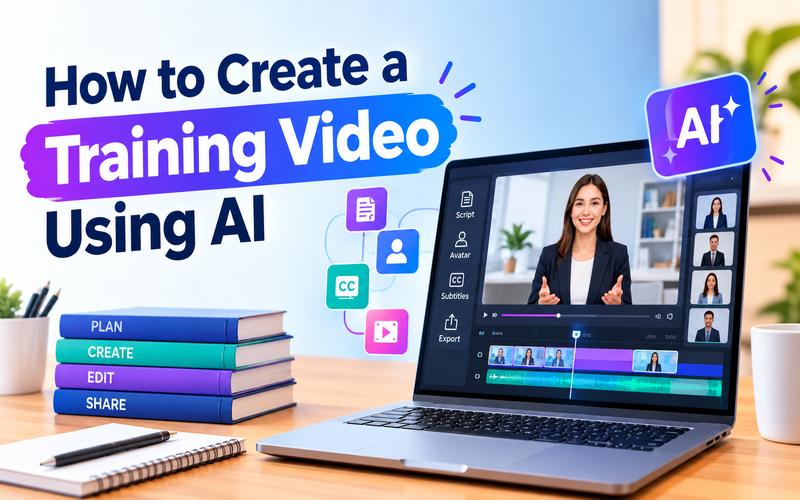
Training videos help employees learn new skills and understand work processes. They also make lessons easier to review when needed. However, traditional video production can take time, money, and special equipment. AI for training videos offers a simpler way to plan, create, and edit learning content. You can turn written material into scripts, record software tutorials, or create videos with AI presenters. This guide explains how to create a training video using AI with HitPaw Edimakor.
Why Use AI to Create Training Videos
Traditional training video production comes with several challenges. It is often time-consuming, taking hours or even days to finalize a single clip. Narrative exploration can be challenging when working with rigid scripts and limited re-filming budgets. The process is also costly and labor-intensive, requiring specialized staff at every stage. Customization is also limited, making it difficult to adapt content for different global teams or specific departments.
Using AI solves these problems through several key advantages:
- Speed and Efficiency: AI tools can generate scripts and initial video drafts in minutes, not hours.
- Cost-effectiveness: It significantly reduces the need for expensive hardware, software, and professional teams.
- Ease of Updates: Content can be modified and regenerated quickly without the need for new filming
- Multilingual Support: AI can translate and dub videos into dozens of languages, making training accessible to global audiences.
- No Camera Required : Tools like AI avatars let creators deliver professional presentations without appearing on camera.
- Integration : Record and edit training materials within a single software platform.
- Enhanced Engagement: Features like auto subtitles and interactive elements help learners retain information more effectively.
Steps to Create Training Videos with AI
Creating high-quality training videos requires a systematic approach. HitPaw Edimakor is an all-in-one AI video editor that simplifies creating professional content. It combines a wide range of video editing features and AI tools in one software. This helps creators turn ideas into videos even without prior experience. The software is specifically tailored to support business use cases, including marketing, advertising, and internal training.
Key Features of HitPaw Edimakor:
- AI Script Generator: Turns ideas into structured training scripts quickly.
- Realistic AI Avatars: Adds virtual presenters to deliver employee training without appearing on camera.
- Advanced Screen Recorder: Records software tutorials, on-screen demonstrations, and step-by-step training processes.
- Auto Subtitle Generator : Converts training scripts into natural voiceovers in 130+ languages for clear narration.
- Text to Speech : Converts text into lifelike voices in 80+ languages.
- Transitions and Effects: Creates smoother transitions between training sections and keeps lessons visually engaging.
- Stock Media Library: Adds relevant stock photos and video clips to illustrate concepts and support explanations.
- Audio Editing: Adjusts voiceovers and background audio to keep training instructions clear and easy to understand.
Step 1. Define Your Training Goals and Audience
Before creating a training video, identify what you want learners to understand or accomplish. Define your target audience, such as new employees, customers, or students, and consider their existing knowledge of the topic.
Step 2. Prepare Your Content for the Training Video
Prepare the content you want to turn into a training video, such as documents, presentations, or key points. If you need help creating a script, use HitPaw Edimakor's AI Video Script Generator to turn your ideas into a clear and organized script. The AI Script Generator can create a training script in seconds and supports more than 20 languages. This makes it useful for creating training content for teams and audiences worldwide.
Follow these steps to prepare your script.
Open HitPaw Edimakor on your PC and select 'AI Writer' (Copywriting) to begin.



Select a suitable 'Inspiration assistant' option that suits your training topic. Choose your preferred 'language' and script length. Enter your training Topic, key points, or instructions into the input box. Let the AI generate a script for your training video.
 You may also like:
Step 3. Record Your Screen or Create AI Presenter Videos
Using AI avatars is a game changer for those who prefer not to appear on camera. This feature lets you create training videos with AI avatars that look and sound like real humans, with perfect lip syncing. Choose from stock avatars, or create a custom digital version of yourself from a photo.Access an AI Avatar Tool: Open Edimakor and select the 'AI Avatar' feature. Choose a ready made template or create your own avatar.
Select an AI Model and Avatar: Choose an 'AI model' that suits your needs. Then, select an avatar from the library, upload your own image, or create a new avatar with a text prompt.
Generate the Voice: Enter your training script to create AI speech. You can also upload an audio sample or use the AI Copywriting tool to write your script. Choose your preferred voice and language.
Generate and Edit Your Video: Click 'Generate' to create your video. Edimakor syncs the avatar's lip movements with the audio. Preview your video in the 'Result' section and make any final edits before saving it.
Step 4. Edit the Video with AI Tools
Editing is the stage where you refine your content and make sure it meets your quality standards. Editing helps improve your AI training videos by trimming clips and adding visual and audio effects. Edimakor provides a comprehensive set of tools to help you achieve a professional look:
- Use AI Subtitle to automatically generate subtitles, making training content easier to follow
- Improve video clarity with Video Enhance to make instructional details easier to see.
- Add AI Sound Effects to emphasize important actions and transitions.
- Create smoother scene changes with AI Transition or Multi Frame Transition.
- Enhance supporting visuals with Image Effects for a more consistent video style.
Step 5. Review and Export Your Training Video
Preview the video in full resolution before exporting. Once satisfied, export the final training video in your desired format and quality.
Tips for Making Effective AI Training Videos
Creating materials requires more than just technology. It requires a focus on the learner's experience and retention. Follow these industry best practices to ensure your educational content is impactful.
- Keep videos between 5 and 15 minutes long.
- Use high-quality audio and high-resolution visuals.
- Provide clear, step-by-step instructions in every module.
- Add real-time annotations to highlight important information.
- Incorporate AI avatars for a consistent brand spokesperson.
- Use auto subtitles to improve accessibility for all learners.
- Organize content into clear, digestible learning modules.
FAQs About Creating Training Videos with AI
A1: The best tool depends on your workflow. If you want scripting, screen recording, AI avatars, subtitles, editing, and export in one place, HitPaw Edimakor is worth evaluating with one short lesson.
A2: Yes. Edimakor's AI Script Generator can structure a topic, and its AI Avatar workflow can turn entered text into a talking presenter. Review the instructions first.
A3: Yes. Record your screen and voice, use slides and captions, or create an AI avatar. Screen only lessons suit software demonstrations. Avatars can introduce modules or policies.
A4: No, you don't need professional video editing skills to create training videos with AI. Tools like HitPaw Edimakor can help you generate scripts, create AI avatar videos, and add subtitles with simple workflows.
A5: Yes, some AI video tools offer free plans or trial credits to help you get started. However, free versions may have limits on available features, usage credits, or export options. Paid plans typically provide access to more advanced AI tools and additional customization options for creating training videos.
Conclusion
AI can make training production more efficient, but a strong lesson still starts with an accurate goal and useful content. Use AI for training videos to draft scripts, create presenters, record demonstrations, add subtitles, and polish the edit. HitPaw Edimakor brings these tasks into one workflow for faster iteration. Start with a short lesson, review the results, and improve your content based on learner feedback. Try HitPaw Edimakor today to create a clearer training experience with less production friction.
Leave a Comment
Create your review for HitPaw articles