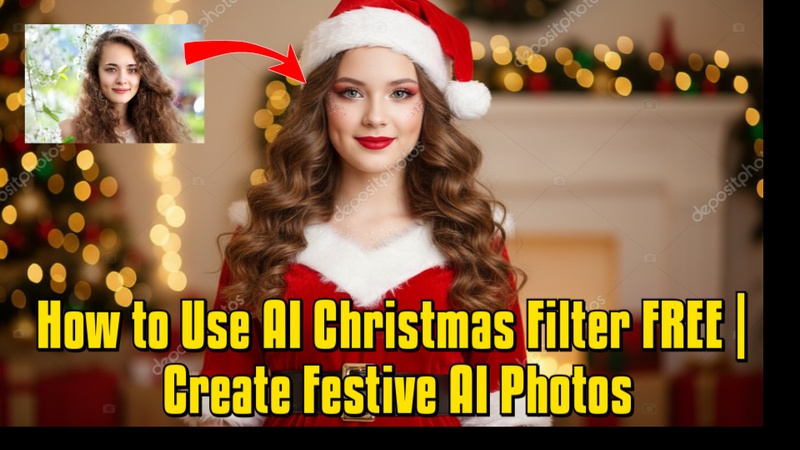
Anyone can quickly turn their photos into festive holiday-themed images with the ai christmas filter 2025. This free application streamlines the process and produces excellent results that feel seasonal and professional, whether for social media, greeting cards, or personal projects.
Part 1: How Many Kinds of Trending AI Christmas Filters
There are several trending types of AI Christmas filters, including snowy backdrops, Santa hat overlays, cosy winter lighting, elf‑oriented fantasy styles, reindeer or deer‑antler effects, and festive ornamented frames.
1 AI Christmas Toy Filter
AI Christmas toy filter transforms people into adorable toy-styled characters, usually with smooth textures, large shiny eyes, soft painted facial tones, and perfect porcelain doll lighting. It is widely used on TikTok and Instagram and often creates stunning Christmas portrait images.

2 Vintage Christmas AI Filter
The vintage Christmas ai filter recreates the warm, nostalgic feel of old Christmas greeting cards from the 1950s and 1960s. It typically includes soft film textures, grain, muted holiday colours, and classic illustration-style details.
3 Nightmare Before Christmas AI Filter
Inspired by the famous movie, nightmare before Christmas ai filter gives photos a gothic holiday aesthetic. Character faces may look stylized, cartoon-like, or slightly spooky, surrounded by Halloween-meets-Christmas environments
4 AI Christmas Family Photo Filter
Perfect for group portraits, this AI Christmas family photo filter creates matching lighting, consistent outfits, and balanced scenes, making family photos look like they were taken in a professional holiday studio.
5 AI Christmas Card Photo
AI Christmas card photo turns photos into ready-to-share greeting cards with typography, snow overlays, ribbons, or illustrated frame decorations. Great for sending digital cards instantly.
Part 2: How to Use the AI Christmas Filter
Easily transform your photos into festive holiday masterpieces using the AI Christmas filter free. Follow simple steps to add decorations, snow effects, and cheerful AI enhancements for free:
How to Use the Christmas Filter I Found On Social Media
Let us learn how to use AI Christmas filters for our photos.
Using Edimakor Reference AI Image generator
Step 1: Launch Edimakor on your computer, then look for the Toolbox panel where all the AI features are grouped for easy access. Inside Toolbox, scroll to the AI Image tools and select Reference Image. This opens the workspace where you can apply another picture’s style to your own.


Step 2: Firstly, upload your image and then upload the image that contains the Christmas filter style you want to copy, such as Santa makeup, glowing lights, snow textures, or red-green tones.
Step 3: You can add a short description, like: Cute Christmas makeup, warm lighting, bright holiday colours, to guide the AI to add more detail.
Step 4: Hit the Generate button and allow Edimakor to analyse and recreate the Christmas filter on your photo. Once finished, review the output image and save it to your device for sharing on social media or further editing.
Using Edimakor AI Image to Video Generator
Step 1: Start the app again and navigate to the Toolbox section, where all the AI video tools are listed. This tool lets you turn any picture into a moving clip with animated effects, dynamic motion, or even holiday-themed camera transitions.
Step 2: Select the image you generated earlier or any festive photo you want to bring to life.
Step 3: You can describe the scene with prompts such as: Magical snowfall, glowing Christmas lights, gentle motion, warm festive atmosphere. Edimakor will use this to guide the animation.
Step 4: Choose how long the video should be, the quality level, and whether it’s for TikTok portrait, YouTube landscape, or Instagram square.
Step 5: Press Generate and let the AI apply motion, animation, and Christmas effects to your image automatically. Check the final animated clip, and when satisfied, export it for sharing or further edits.
How to Use An AI Christmas Filter Template
These are the steps to use ai Christmas Video template:
Step 1: Lauch Edimakor AI and Go to “New Project > Media > A Video > AI Effects > Festival.”
Step 2: Browse the library of the AI Christmas Filter templates and pick one.
Step 3: Hover on it and click the “Create” button.
Step 4: Upload your photo and adjust the settings.
Step 5: Hit the “Generate” button and start your creation.
Step 6: Get the result in “ My Creation.”
Part 3: How to Use the AI Christmas Filter Online for Free
Create festive holiday photos effortlessly with the christmas ai photo filter online for free. Transform any image with seasonal effects, decorations, and cheerful themes without downloading software or paying for premium tools.
Step 1. Prepare Your Photo
Open Canva and go to your workspace. Upload your photo if it’s not already in your account. Choose the photo you want to give a festive, Christmasy look.
Step 2. Start Editing the Image
Click on the image and select Edit. Scroll to Magic Edit and select it. Click on the element you want to change. Describe what you want the AI to do, like: Turn this into a Christmas tree with yellow lights. Generate the changes and choose your favourite option.
Step 3. Add Festive Accessories
Use the Brush Tool to highlight areas you want to change or add elements to, like a hat. Instead of change, instruct the AI to add festive elements, such as a Christmas wreath or decorations. Generate and adjust until you are happy with the results.
Step 4. Final Touches
Review all changes: image edits, added elements, and text. Make any final tweaks for a cohesive Christmas-themed look. Save or download your new festive image.
To Conclude
Making holiday images is quick, enjoyable, and cost-free with the ai christmas filter 2025. The HitPaw Edimakor (Video Editor) delivers sophisticated capabilities that combine AI magic with expert editing to create the ideal holiday content for individuals who wish to expand their creativity into video projects.
Leave a Comment
Create your review for HitPaw articles